
Inspect the ontology workspace
The Ontology workspace shows the vocabulary for the current organization or selected project. The controls described below are available in the current release.
yggy starts from a base ontology so common types and relations have a stable meaning. When your files use industry- or company-specific language, yggy proposes additions. You decide what enters the vocabulary.
Inspect entity types
Section titled “Inspect entity types”- Open Ontology → Classes.
- Search for an entity type such as
Organization. - Read the tiles: a bigger tile means more entities, and a type’s subclasses appear as chips on its tile. A violet dot marks a class you added to the project.
- Select a tile to open its details panel with entity and fact counts, subclasses, filled properties and the most used relations. Show entities opens them in the graph.
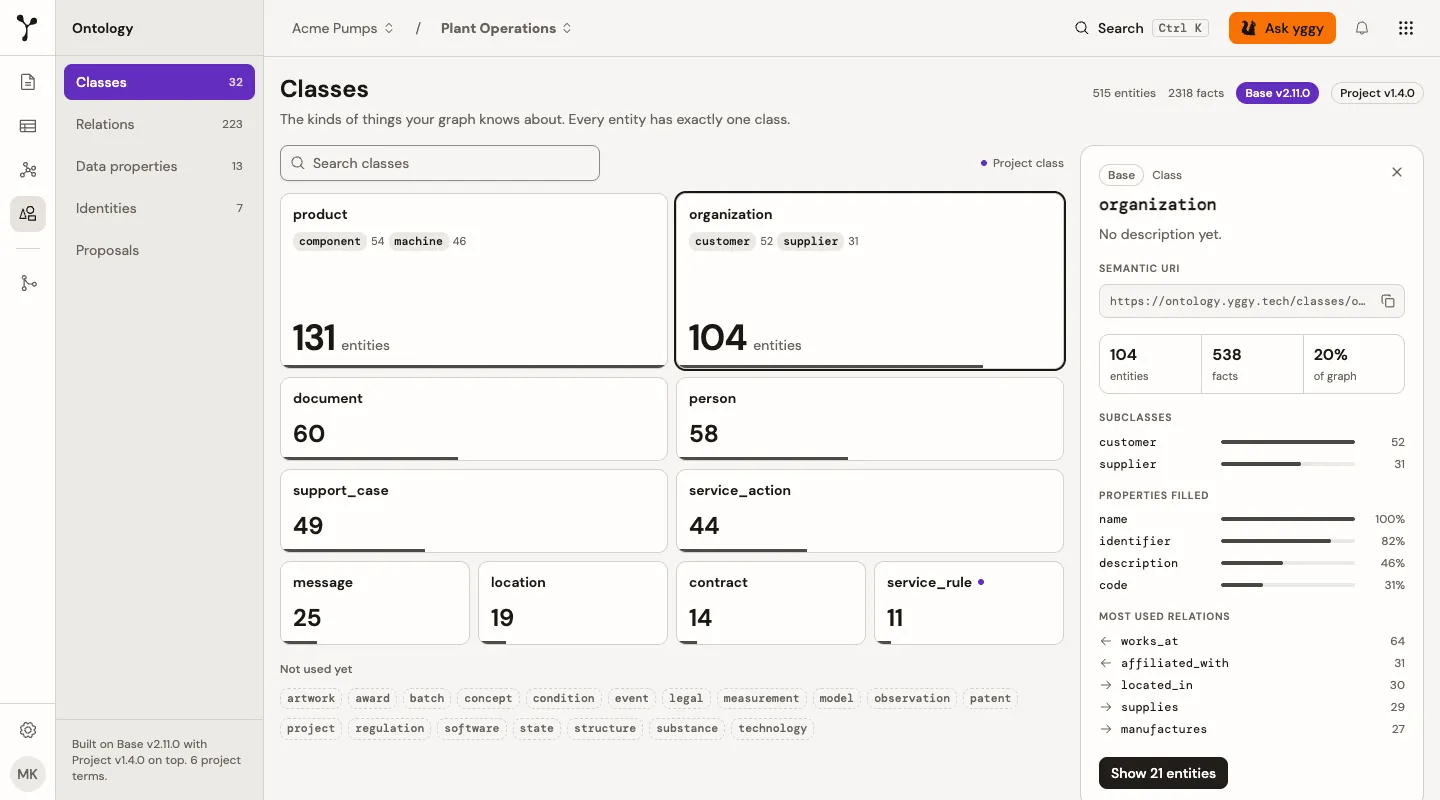
Vocabulary types that have no classified entities yet appear in the Not used yet tray. Until usage has loaded, all tiles have the same size.
Inspect relations
Section titled “Inspect relations”- Open Ontology → Relations.
- Search for a relation such as
located_in, or for a class it connects. - Read each row as a sentence, such as
organization located_in location. Pick a domain pack on the left to narrow the list, or switch from List to Matrix to see which relations are allowed between which classes. - Select a row to open its details panel with the shape, how it is used between classes, and example facts.
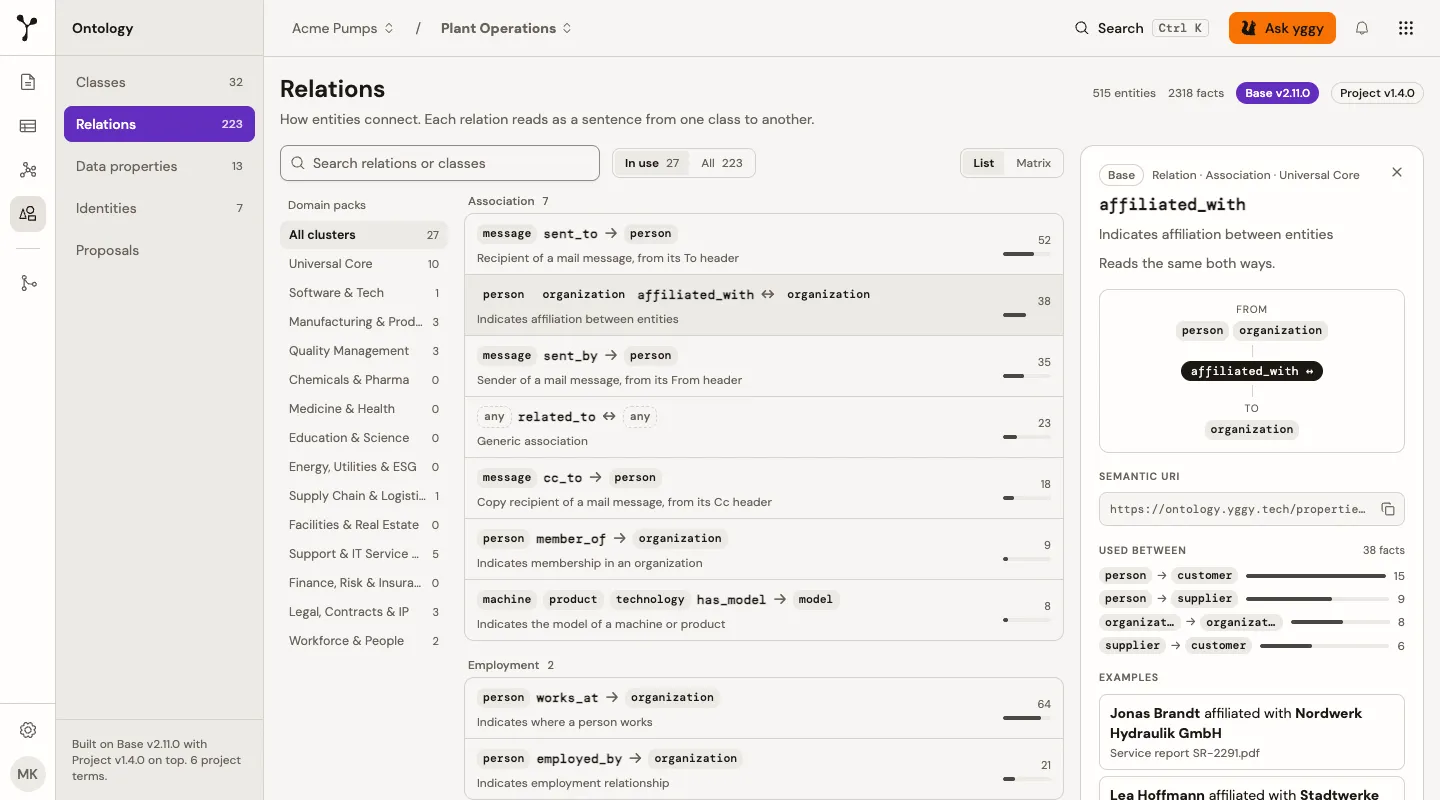
Once facts are counted, the page shows only the relations in use. Switch from In use to All to inspect the complete vocabulary. A project without facts yet shows all relations.
Inspect data properties
Section titled “Inspect data properties”Data properties are typed values on an entity, such as a description or a date. They are not separate graph entities.
- Open Ontology → Data properties.
- Search for a property such as
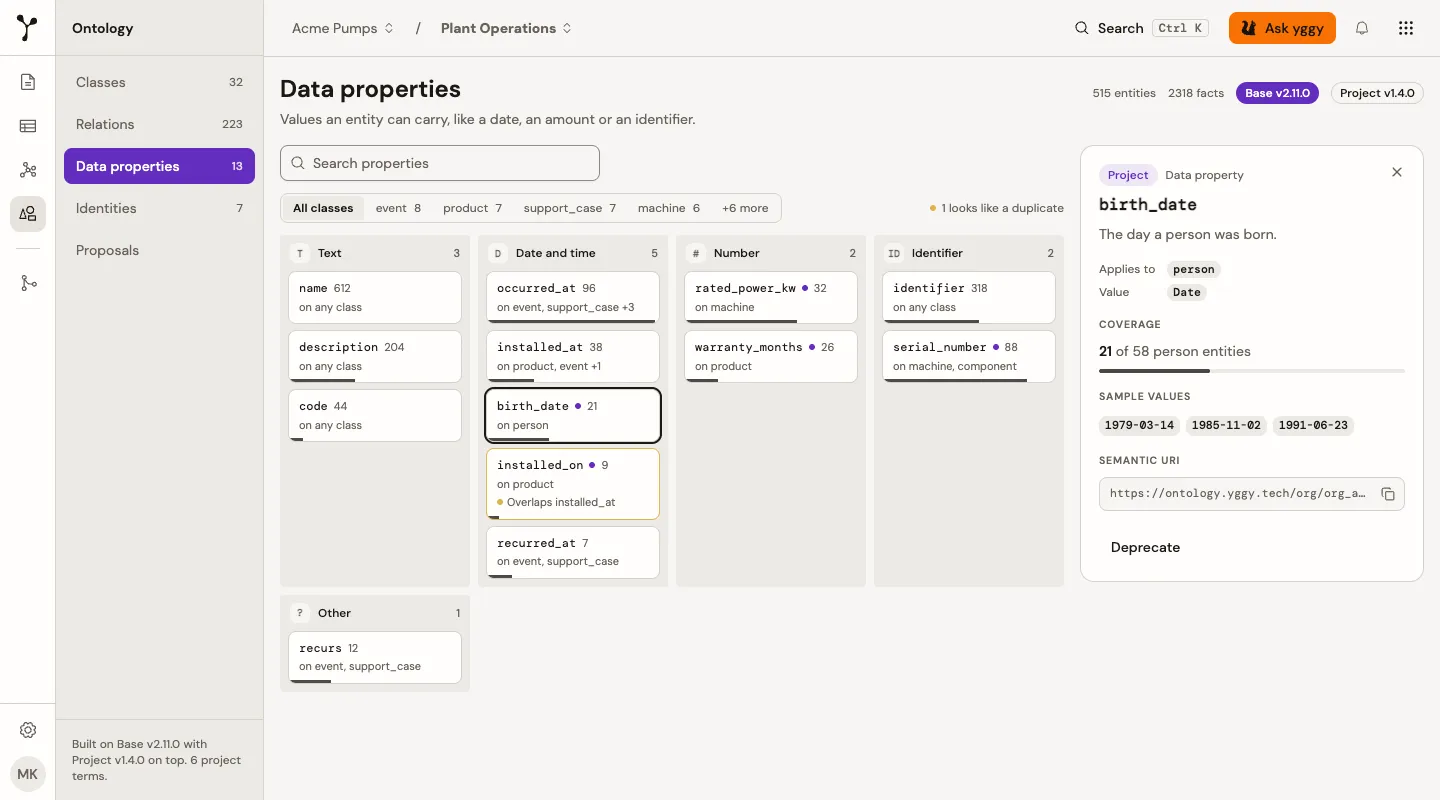
description, or narrow the list to one entity type with the class filter. - Read the lanes. Properties are grouped by datatype: text, date and time, and number. The Identifier lane collects text properties whose names look like identifiers, for example ending in
_idor_number. An Other lane appears only when a property has a datatype that fits none of these. - Select a property to open its details.
Each card shows the entity types the property applies to. Once usage has loaded, it also shows a coverage bar: the share of possible entities that carry a value. The details panel repeats the coverage with exact counts and lists the classes the property applies to. Coverage and duplicate hints always reflect the whole vocabulary, so filtering the view never changes them.
Any property, base or project, is flagged when pending proposals map to it. A property you added to the project is also flagged when it looks like another property of the same kind on the same class. Deprecated properties are never flagged. Properties you added to the project can be deprecated from the details panel. Base properties are read-only.
Review proposals
Section titled “Review proposals”When extraction finds an identifier field or a useful concept that the active ontology cannot express, yggy creates a proposal with source evidence. It does not add the mapping or term silently. The document still finishes extraction: the facts are already in the graph, and nothing you decide here removes them.
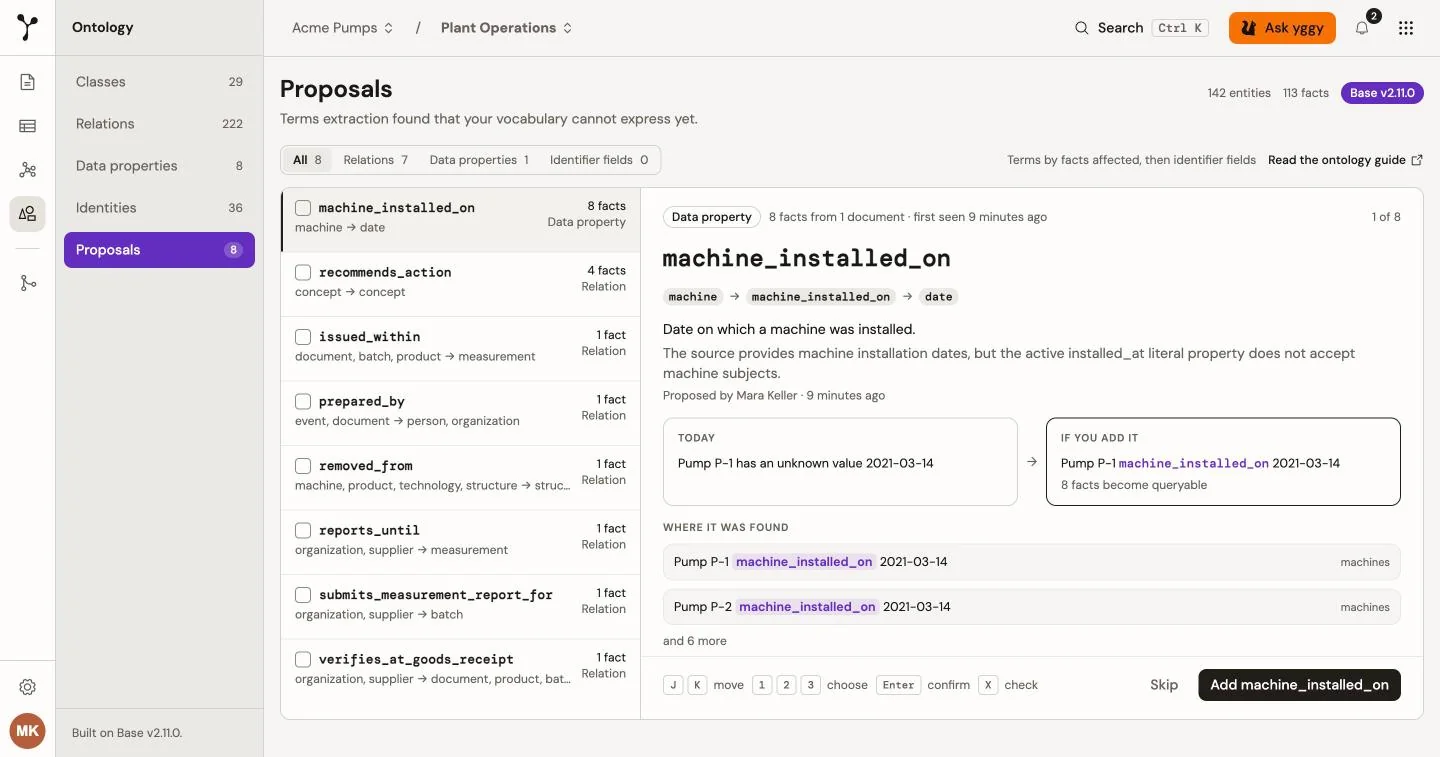
Open Ontology → Proposals, or Review → Ontology. Both show the same triage: a queue on the left and one decision on the right. On a narrow screen the queue sits above the decision. To see the proposals of one document, open the document and select Mapping.
The queue
Section titled “The queue”- One row per term. When several documents propose the same term (same kind and name), they appear as one row. A decision applies to every proposal in that row.
- Identifier fields in the same queue. Fields that could join entities through an identifier space are listed after the terms.
- Terms by facts affected, then identifier fields. The terms with the most facts come first. Each row shows its facts (or values, for an identifier field) and its kind.
- Kind filter. All, Relations, Data properties, and Identifier fields narrow the queue. Classes appears when there are class proposals. Each button shows its count. The counts always cover the whole queue, so filtering never changes them.
- Map cleanly. When some terms are a strong match for a term you already have, a strip above the queue reads, for example,
3 map cleanly to terms you have. Choose Accept 3 and confirm to map all of them at once. The facts stay in the graph and use the existing terms.
The Proposals entry in the sidebar shows how many rows are open, so a term proposed by ten documents counts once.
The decision
Section titled “The decision”Select a row to open its decision. The selected row is part of the page address, so a copied link opens the same proposal.
- Today / If you add it. A side by side comparison of how the facts read now and how they read once the term is part of the vocabulary, with the number of facts that become queryable.
- Where it was found. Quotes from the source documents, with the term marked and the document named.
- Three choices. Add to vocabulary makes the term a project term that future extractions use. Map to existing keeps your vocabulary as it is and points the facts at a term you already have; the suggested term is preselected. Decline term keeps the facts and does not propose the term again.
For an identifier field the choices are Use this space, Map to existing space, and Don’t join. The comparison shows whether matching values join entities today and in which space they join once you approve. Approving also re-links the documents where the field was found. Approved mappings appear under Ontology → Identities.
Confirm with the button at the bottom of the decision. Its label names the outcome, for example Add handles_error or Map to contains. Skip moves on without deciding. After a decision the next proposal opens.
Keyboard
Section titled “Keyboard”| Keys | Action |
|---|---|
| J K | Move down and up the queue |
| 1 to 3 | Pick a choice |
| Enter | Confirm the decision |
| X | Check the row, to decide several rows at once |
With rows checked, a bar above the queue lets you accept the suggestions or decline all checked rows after a confirmation.
For example, a service-knowledge project can show three terms from error-rules.csv:
handles_error, a relation with no match. Where it was found quotesPump P-1 handles E-417. Choose Add to vocabulary.stores, a strong match forcontains. It is counted in the map cleanly strip; accept it there or choose Map to existing withcontains.linked_to. If the source field has no stable meaning, choose Decline term.
Identities
Section titled “Identities”Identifier spaces and the fields that feed them live under Ontology → Identities. Open proposals for unapproved identifier fields appear in the same list and also in the Ontology → Proposals queue.
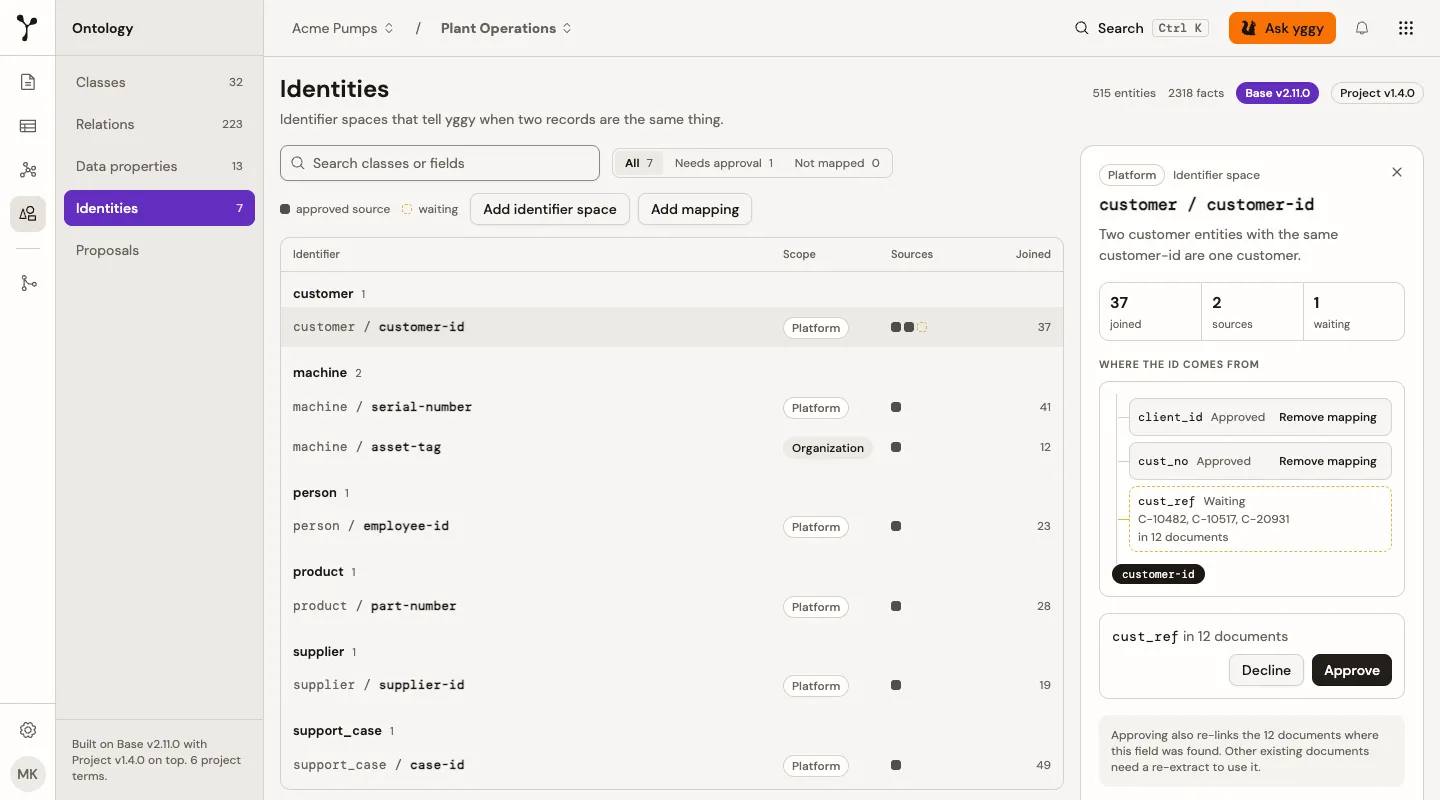
The tab is one list, grouped by entity type. Each row is one entity type together with one identifier space and shows:
- Sources. One square per field that feeds the space. A solid square is an approved source. A dashed square is a source that is waiting for your decision.
- Joined. How many entities the space has joined, once counts have loaded.
Use the search box to find a type or a field. The All, Needs approval, and Not mapped buttons narrow the list. Each button shows its count, and the counts always cover the whole list, so filtering never changes them.
- Open Ontology → Identities.
- Select a row to open its details. The panel shows the joined count, the approved and waiting sources, and how many documents each waiting field appeared in.
- For a waiting source, choose Approve to use the field for this space, or Decline to leave it out. You can remove entries at your current scope only. An identifier space can be removed once no mapping or proposal feeds it. Platform entries cannot be removed.
- Choose Add identifier space to add a new ID scheme, or Add mapping to say which source field supplies a scheme. Both open a dialog and add the entry at your current scope.
Sample. After you approve machine_id on type machine, Identities
shows the space machine / machine-id with one approved source. Shortly after
you approve, yggy re-links the documents where it found that field in the
background, so their entities join without a re-extract. Other existing documents keep their current entities until you
re-extract them. The same applies when you remove a mapping or space: existing
entities are not rewritten.