
Archive, restore, and delete documents
Archive a document when you might need it again. Permanently delete it only when you no longer need the document or its extracted graph data.
Archive a document
Section titled “Archive a document”- Open Sources.
- Select one or more sources.
- In the action bar, select Delete.
- In the Archive N sources? dialog, select Archive. Nothing is deleted at this step.
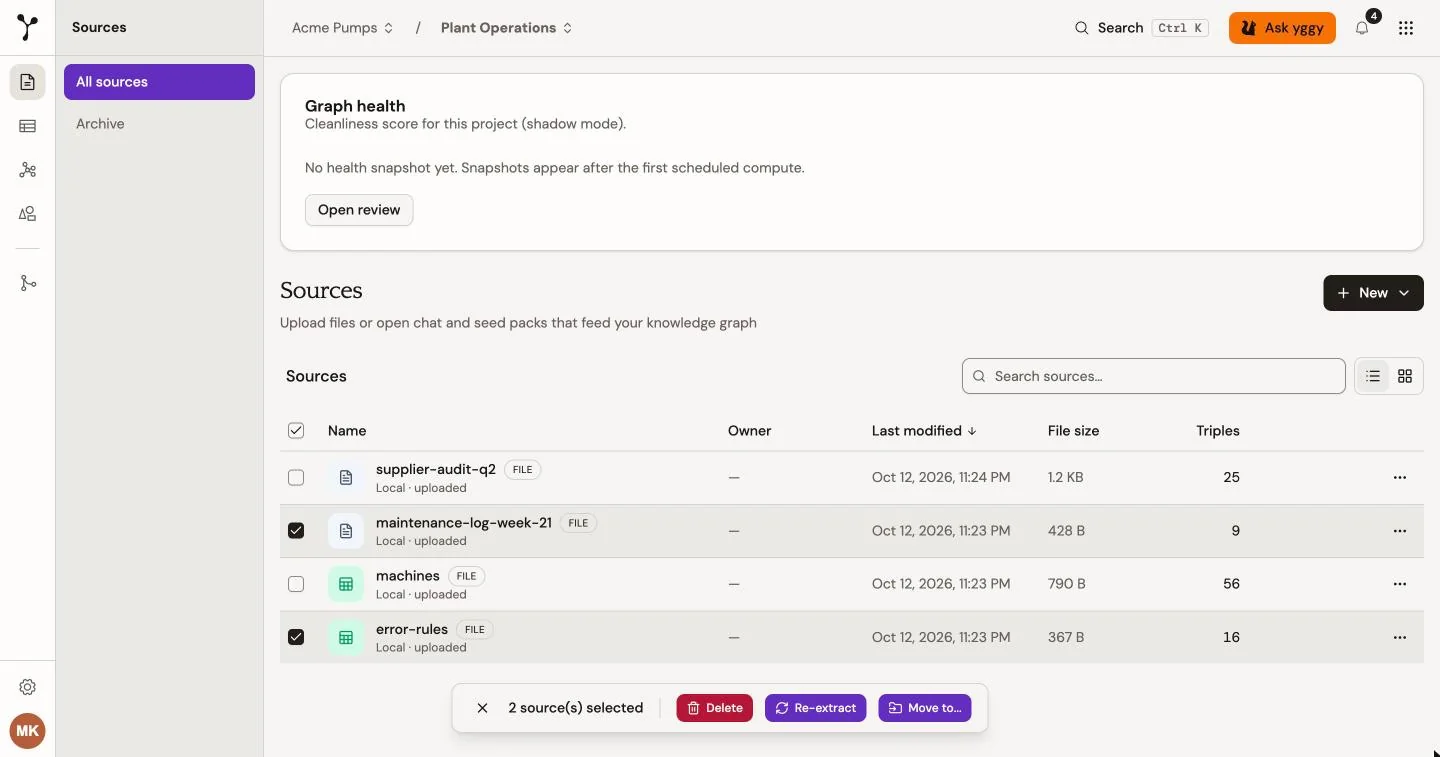
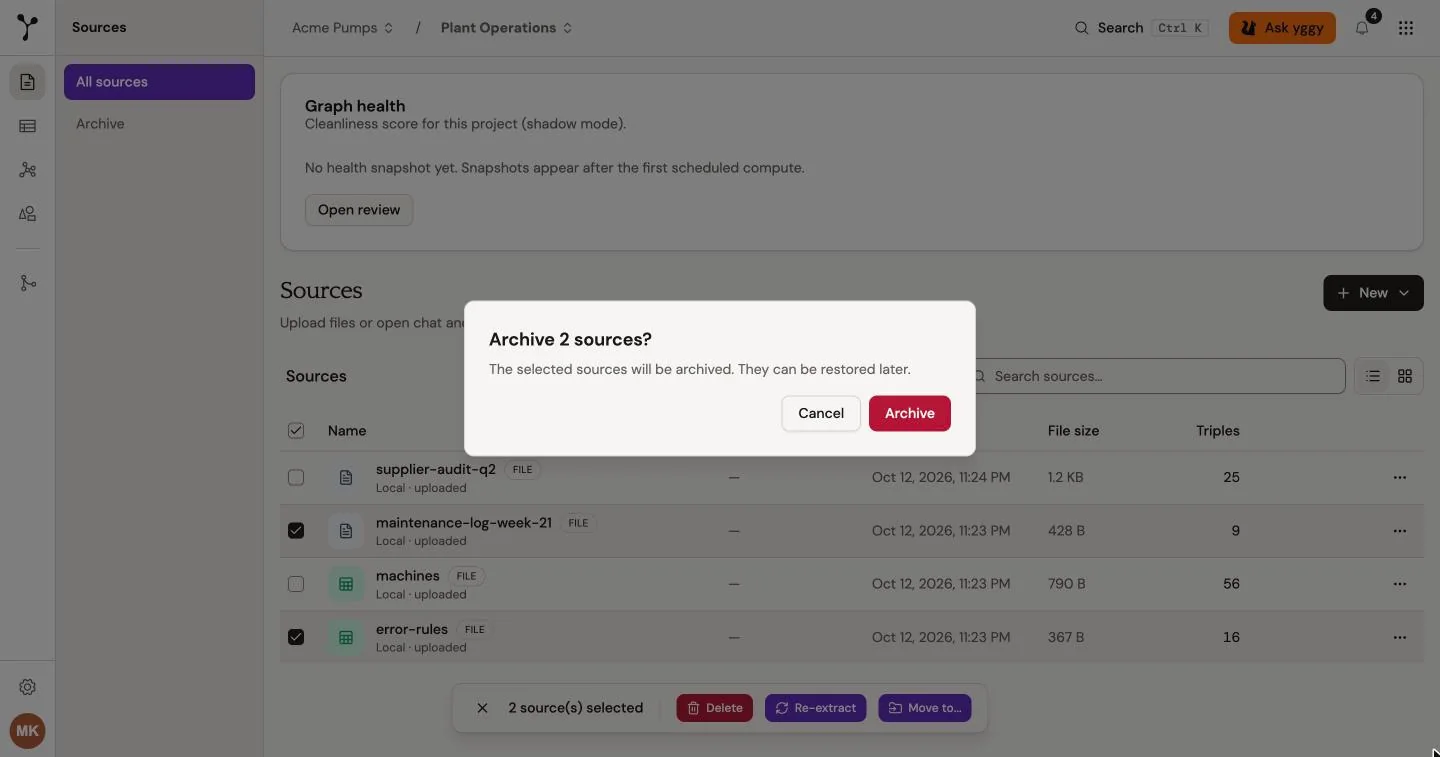
You can also open the actions menu for one source such as Q4-report.pdf and choose Archive Document. Archived sources leave All sources, but you can restore them.
Archiving Q4-report.pdf also removes its extracted triples from the graph. Search for one known fact before and after the archive to confirm the effect.
Restore a document
Section titled “Restore a document”- Open Sources → Archive.
- Find
Q4-report.pdf. - Open the row menu and choose Restore.
The document returns to the active list. Its extracted triples return to the graph.
Permanently delete a document
Section titled “Permanently delete a document”- Open Sources → Archive.
- Open the row menu for the source.
- Choose Delete Permanently and confirm the warning.
To delete several archived sources, select them and choose Delete in the action bar. Empty archive deletes every archived source.
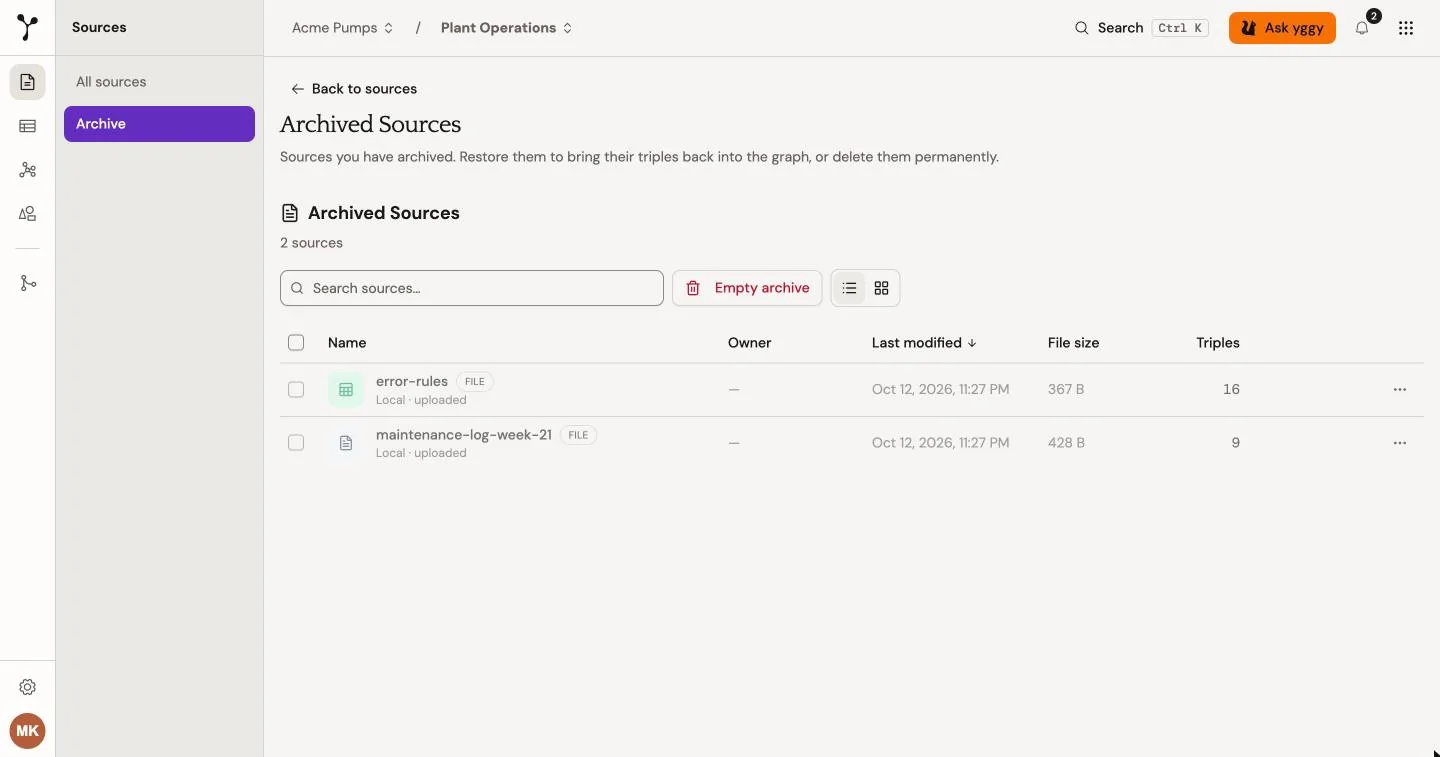
For a bulk deletion, keep the page open while Purging shows progress. Check the archive when the operation finishes and confirm that only the intended documents were removed.