
Graph view
The Graph page shows what your project knows as a network. Entities are nodes and triples are edges. It opens on the active project and fits the whole graph into view.
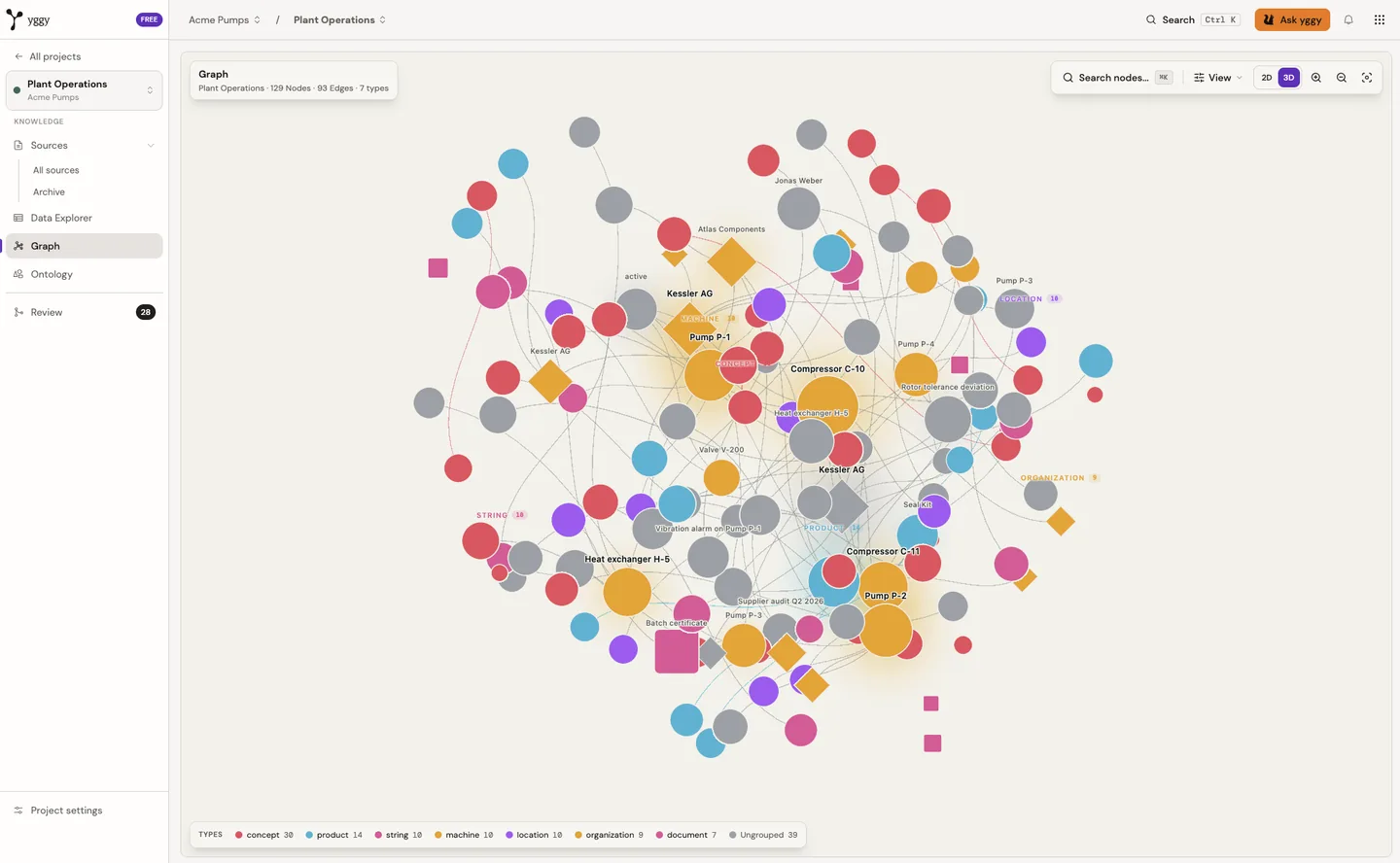
Look around
Section titled “Look around”- Switch between 2D and 3D with the toggle in the toolbar.
- Drag to pan or rotate, and use the wheel, a touch gesture, or the zoom buttons to zoom.
- Select Fit graph to view to see everything again.
- Select View in the toolbar to change labels, show or hide edges, and choose what the colours mean.
Nodes are coloured by group, and a legend names each colour. Select a legend entry to isolate that group and fade the rest.
Search
Section titled “Search”Select Search nodes or press Cmd+K on macOS and Ctrl+K elsewhere, type part of a label, and pick a result. The graph focuses on that record. See Search.
Work with a node
Section titled “Work with a node”Select a node to open its details next to the graph. From there you can, depending on the node type and your permissions:
- View the record and its relations.
- Edit an entity’s label, type, and aliases.
- Focus to bring the node and its surroundings to the centre.
- Expand to load its neighbours, or Collapse to remove an expanded branch.
- Ask yggy to add the node to a chat as a reference.
Select an edge to inspect its triple. Detail can include the subject, predicate, object, status, confidence, source document, and source text. Users with write access can edit or delete eligible entities and triples.
Open the graph from other pages
Section titled “Open the graph from other pages”Open in graph links on entities and documents take you straight to the matching record in the graph. In the ontology, select a class or relation name to open the graph filtered to it. The filter appears as a chip, such as Filtered: Person, and selecting the chip clears it.
Ask about the graph
Section titled “Ask about the graph”Use Ask yggy on a node or triple, or open the chat panel from the graph. The panel uses what is on screen as context. When yggy answers with entities from your graph, they are highlighted on the canvas so you can follow the answer.