
Monitor and recover workflows
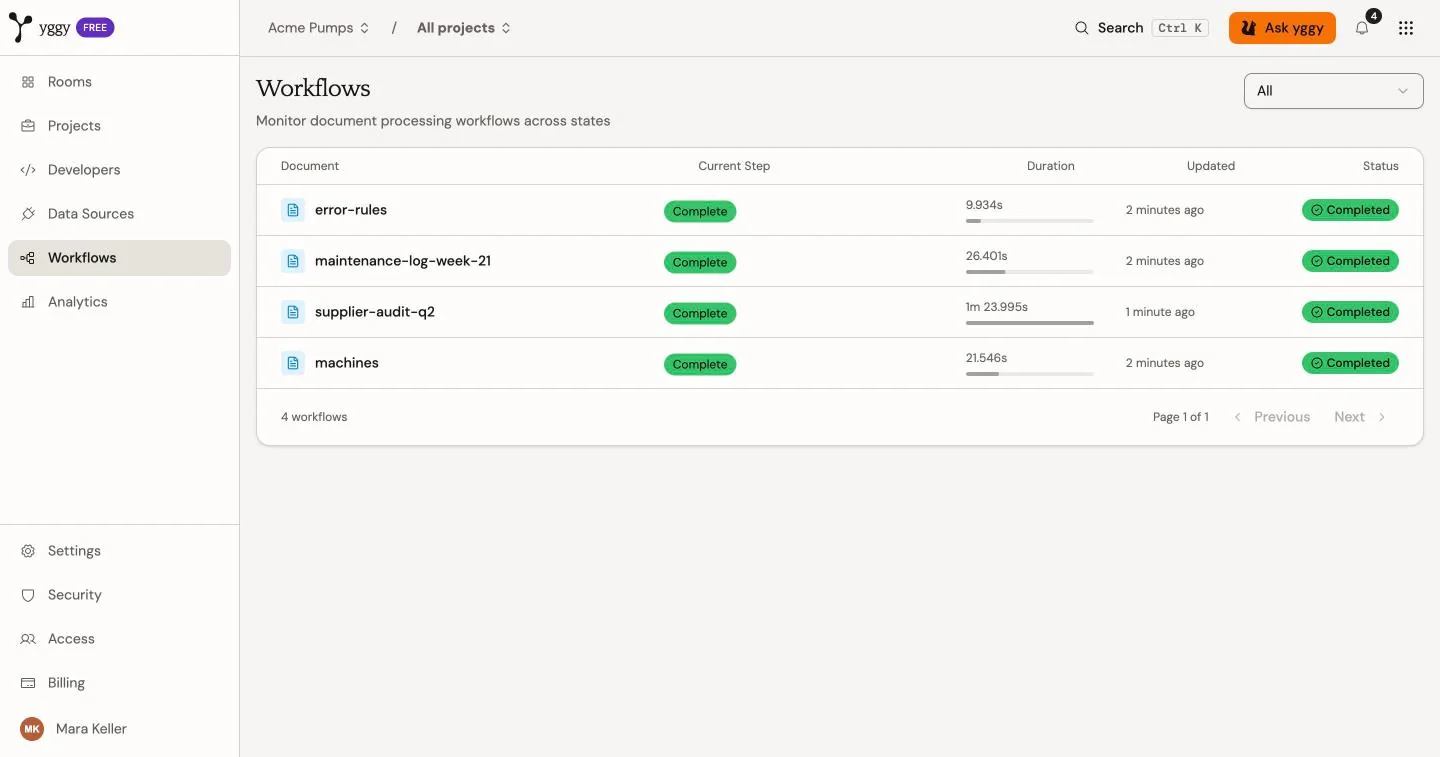
Use Workflows to monitor document processing. Use the State filter to show All, Active, Completed, or Failed workflows.
You only see workflows for documents you can open in Documents (same project membership and visibility rules). Counts, lists, details, and the notifications feed never include someone else’s private documents or projects you are not in. OAuth and API access pinned to one project only show that project’s jobs. Cancelling a workflow requires permission to update that document.
Platform operators use separate internal-only HTTP routes (/api/v1/workflows/health, /services, /deployments, /invocations) to inspect the workflow engine cluster-wide. Those routes require an internal staff session; ordinary org members cannot list every tenant’s invocations or journals.
Inspect active work
Section titled “Inspect active work”- Open Workflows.
- Set State to Active.
- Select the workflow for
Q4-report.pdf. - Review the current status and the Activity log.
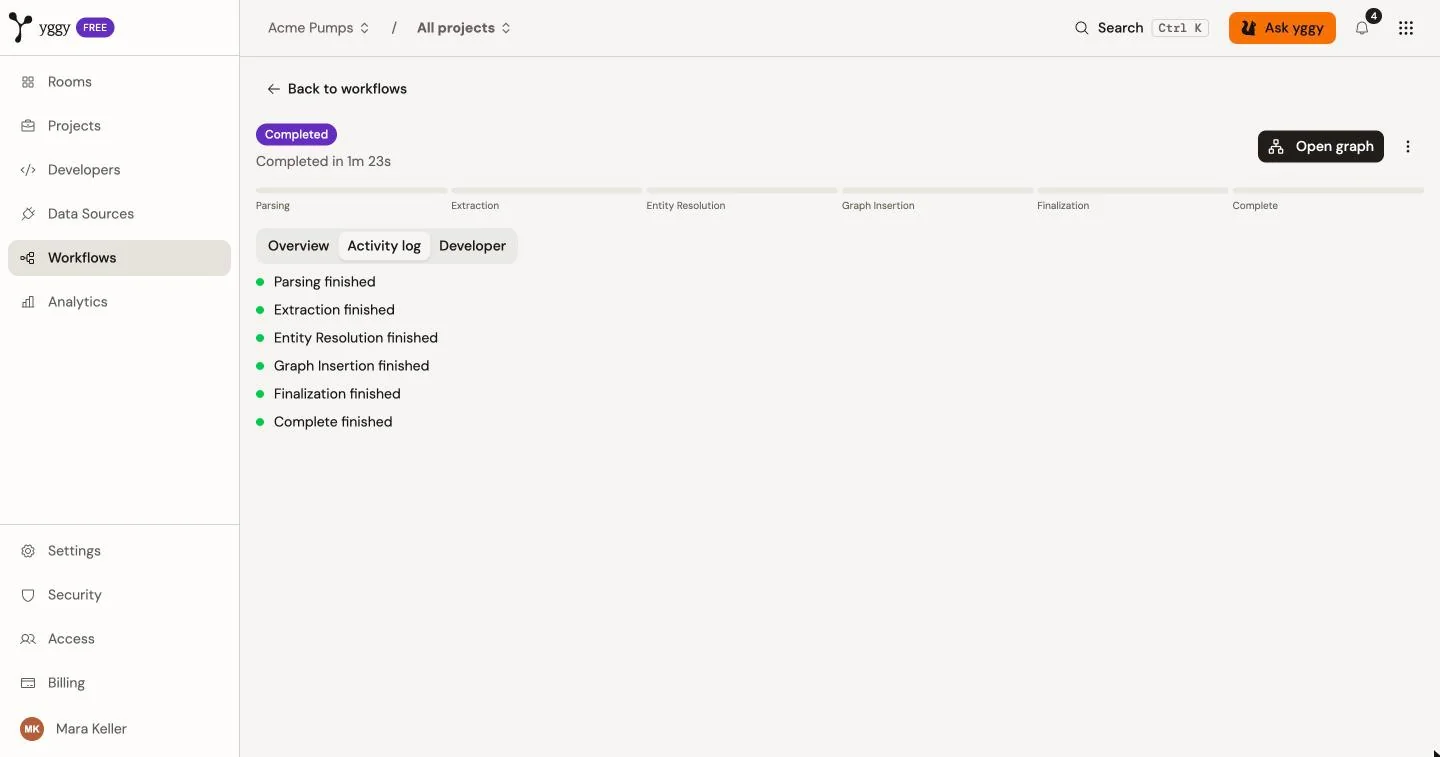
The detail page updates while the workflow is active. Choose Cancel when the work must stop. A cancelled document must be retried before processing can continue.
Recover a failure
Section titled “Recover a failure”- Open Workflows.
- Set State to Failed.
- Select the failed workflow.
- Read the error and the latest activity.
- Correct the cause when the message names one.
- Choose Retry.
Use the error as the recovery guide:
- For a rate limit, wait briefly and retry.
- For an invalid document, fix the file and upload it again.
- For a timeout, retry or split a large file.
- For an incomplete mapping, correct the mapping and re-extract the document.
- For an ontology alignment failure, retry. Ask an owner to inspect the ontology if the failure continues.
For example, open the failed workflow for Q4-report.pdf. If the error reports an incomplete mapping, open the document’s Mapping tab and correct the field mapping. Return to the workflow, choose Re-extract, and confirm that a new workflow appears when the State filter is Active.
Choose Re-extract from More actions when you need a new extraction instead of resuming the current one. Re-extraction starts a new workflow.