Start with yggy
yggy builds a knowledge layer between your source systems and the applications that use their data. It extracts facts, resolves entities and contradictions, and uncovers the domain vocabulary already present in your enterprise data.
Every project starts with the yggy base ontology. During extraction, yggy maps familiar meanings to that ontology and proposes project-specific entity types, relations, and data properties when the source contains concepts that the current vocabulary cannot express. You review those proposals before they become part of the project ontology.
The working loop
Section titled “The working loop”- Bring in source data. Upload files or connect a provider.
- Extract facts and meaning. yggy identifies entities, relations, literal values, and ontology gaps.
- Review the result. Check source evidence, resolve contradictions, and decide how proposed ontology terms fit your domain.
- Use the knowledge. Explore the graph, ask questions in Chat, or connect an agent through MCP or the API.
- Keep it current. Import new source versions and review the changes instead of rebuilding a static model.
Example: uncover a supplier ontology
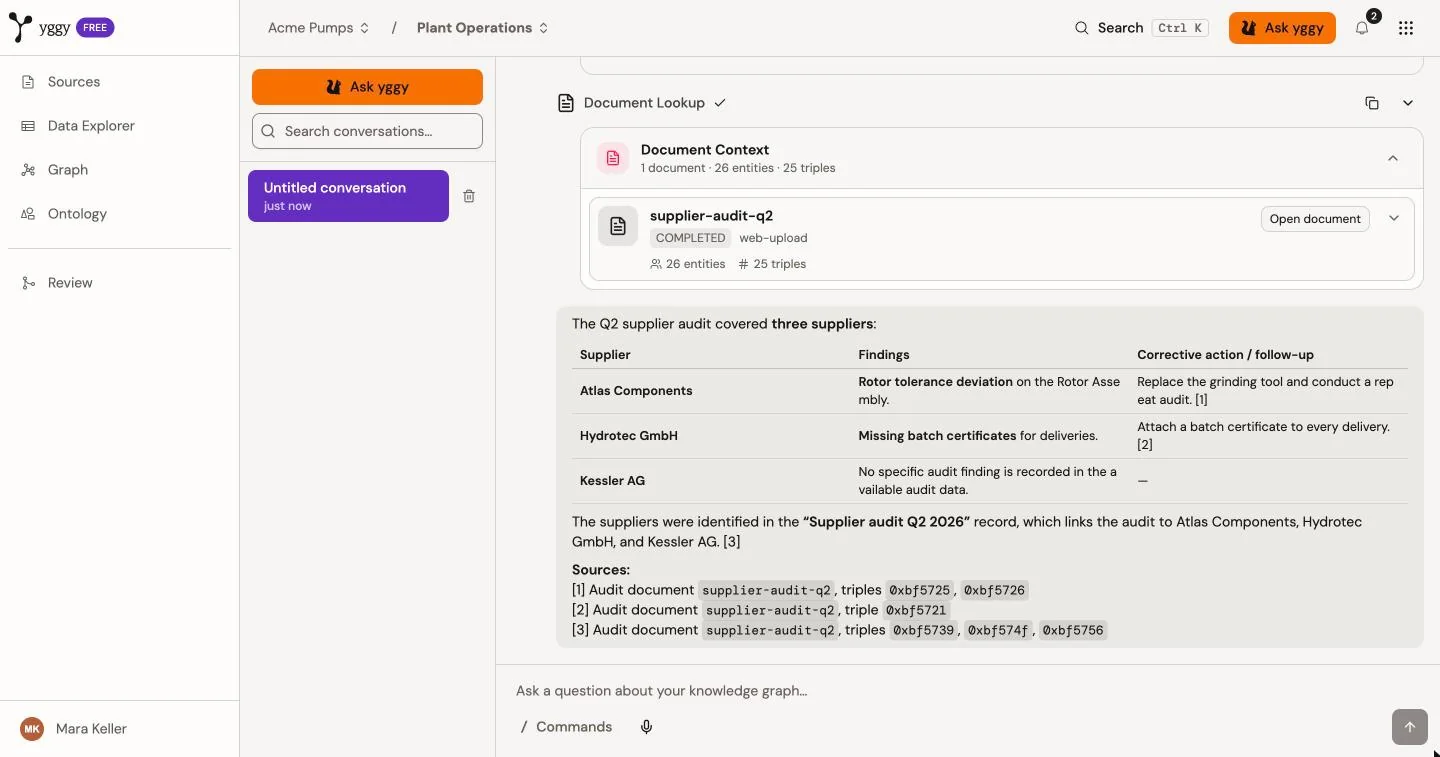
Section titled “Example: uncover a supplier ontology”Suppose you upload supplier-audit-q2.pdf. The report names suppliers, production sites, components, audit findings, and corrective actions.
- The base ontology supplies common meanings such as organizations, locations, events, and states.
- Extraction creates facts such as
(Atlas Components, supplies, Rotor Assembly)and links them to evidence in the report. - If
corrective_actionis not in the active vocabulary, yggy proposes it as a project term with its source evidence. - After review, Graph and Chat can follow the approved relations across this report and later supplier records.
The result is not a folder of searchable text. It is a source-linked knowledge layer and a domain vocabulary that can grow with the enterprise.
First session
Section titled “First session”1. Sign in or create an account
Section titled “1. Sign in or create an account”Open yggy.tech. Use a sign-in method shown on your login page.
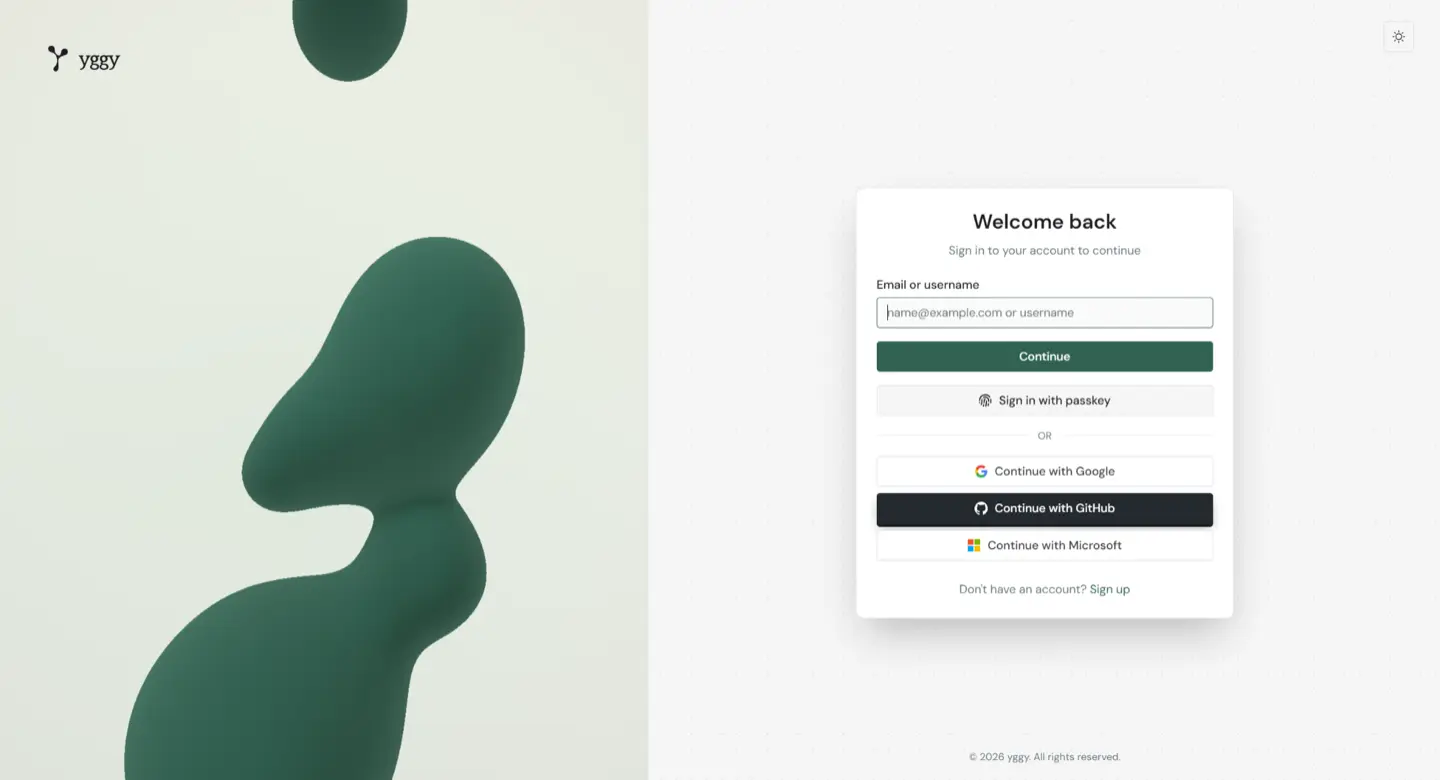
Email and password
- Enter your email or username.
- Select Continue.
- Enter your password.
- Select Sign in.
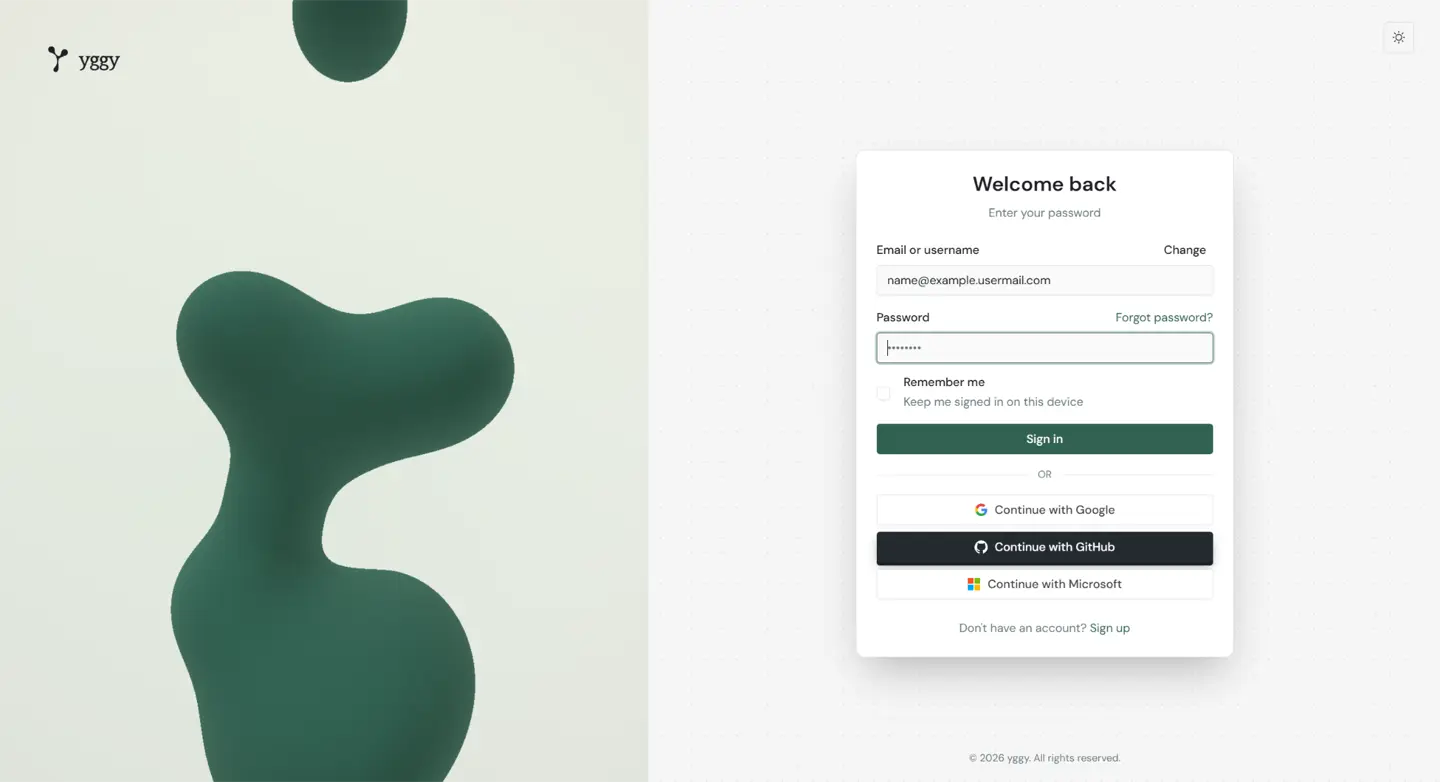
Use Forgot password? when you need a reset. Select Remember me to keep this device signed in.
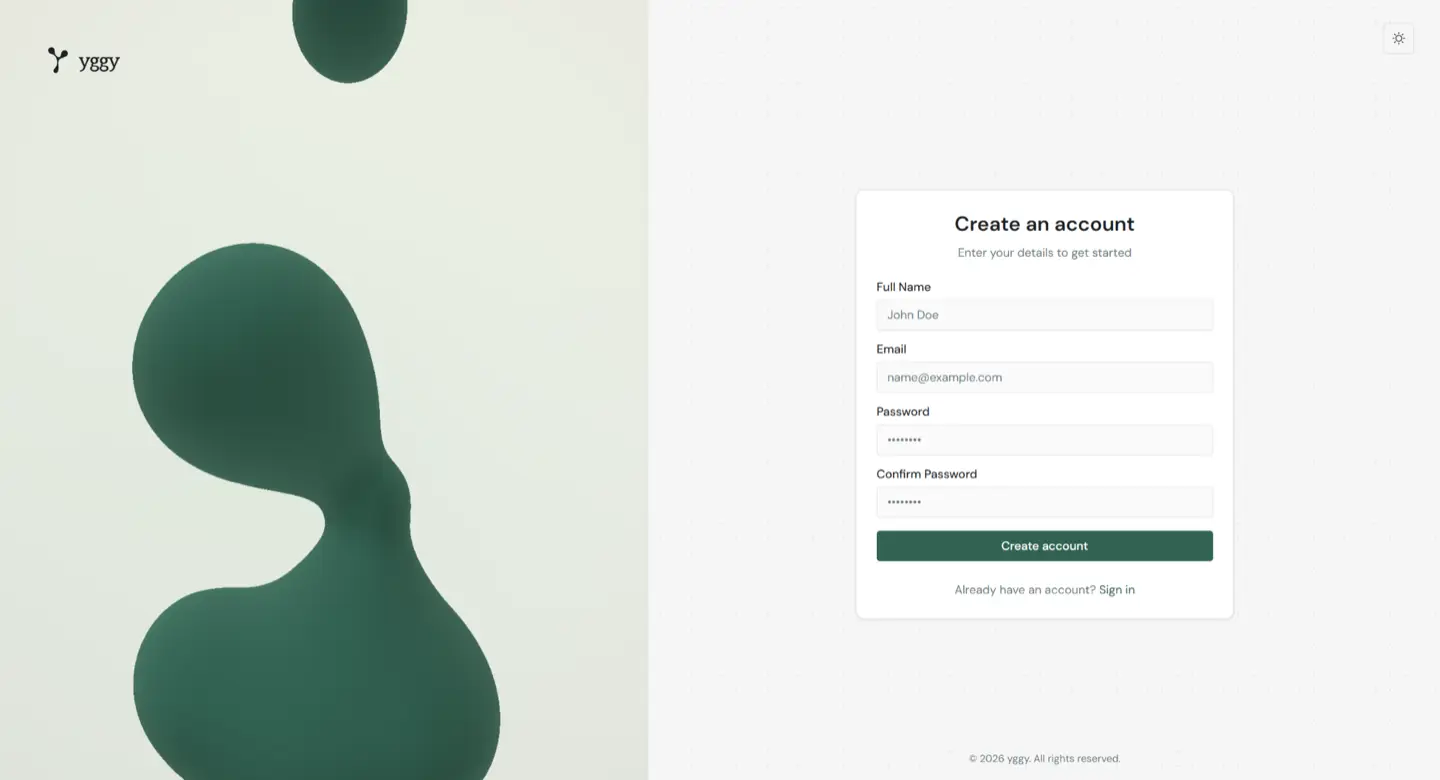
Create an account
- Select Sign up.
- Enter your name, email, and password.
- Select Create account.
Google, GitHub, Microsoft, or passkey
Select the matching button and finish the provider or device prompt. yggy then opens the product.
If someone invited you, you already belong to their organization. Skip the next step.
2. Create an organization
Section titled “2. Create an organization”An organization is the workspace that owns projects, members, billing, providers, and security. You can belong to more than one.
- Enter an organization name.
- Keep or edit the URL slug.
- Optionally add a description.
- Select Create organization.
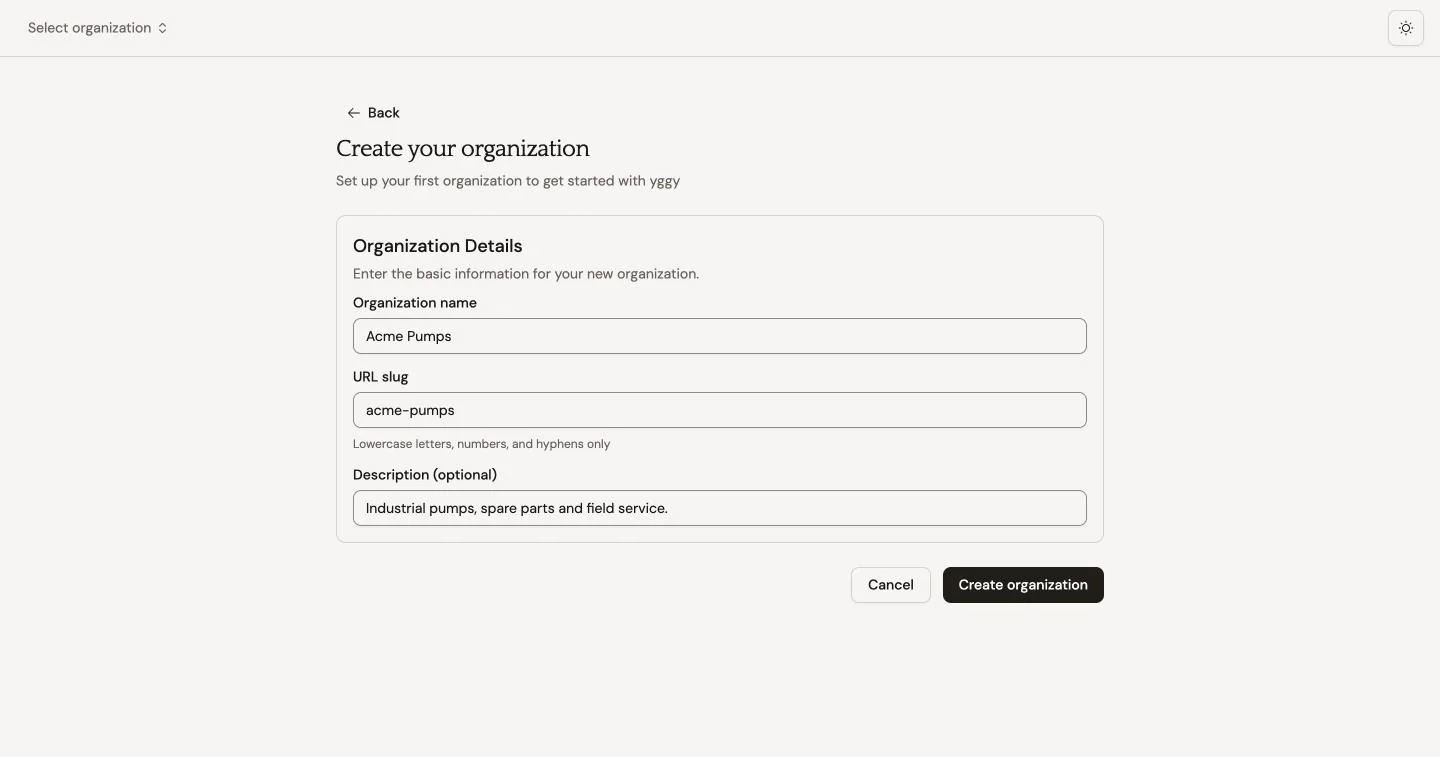
yggy then opens Rooms. Select Projects in the sidebar to see the default project My files.
3. Create a project
Section titled “3. Create a project”Projects separate data that you should not mix. Accounting files and product catalogs belong in different projects. Select one project to work in that subspace. Select more than one project when a task needs both.
- Select New project.
- Enter a name.
- Keep or edit the slug.
- Optionally pick a color.
- Select Create Project.
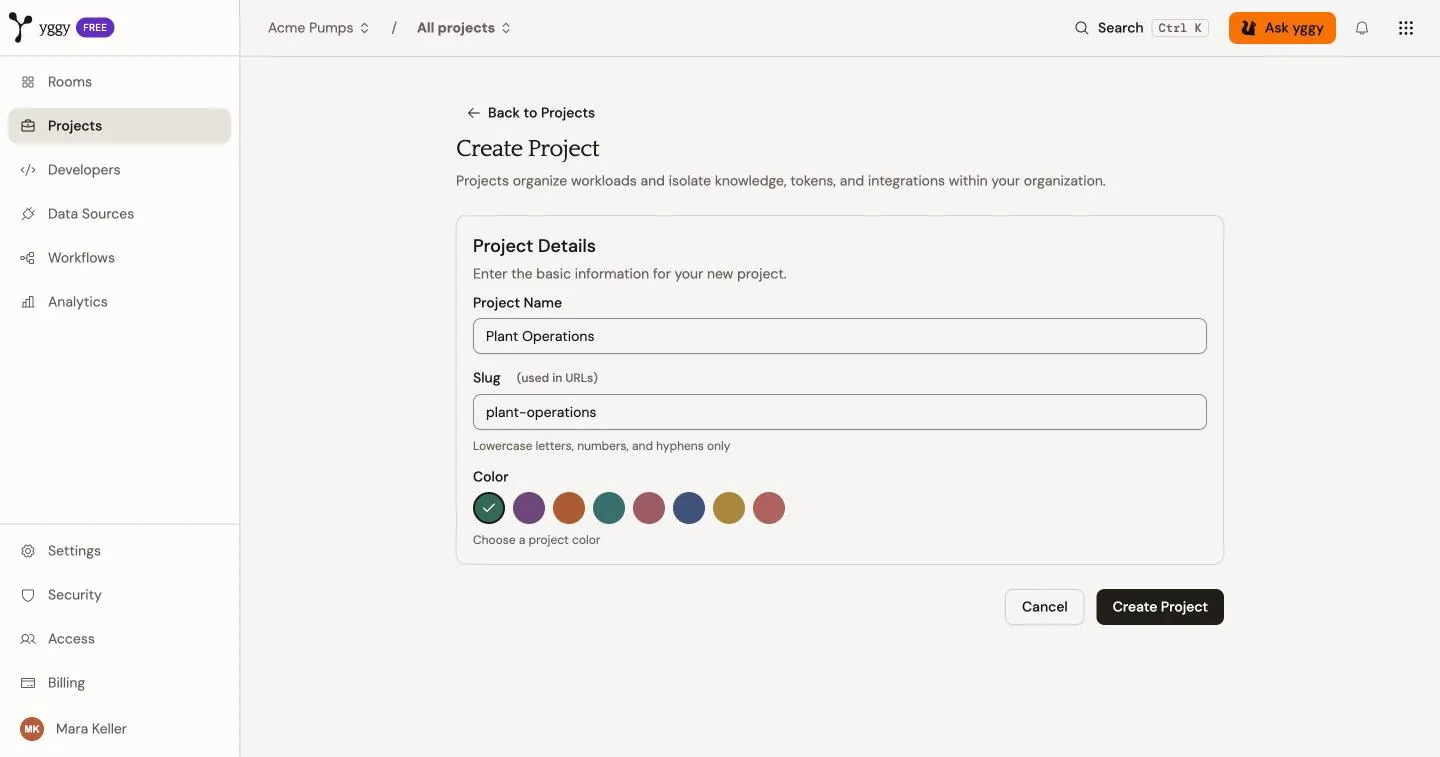
Every organization also has a default project. Confirm the active project in the top bar before you add data.
4. Upload one file
Section titled “4. Upload one file”The project opens on Sources.
- Select New.
- Select Upload file.
- Drop a file onto the dialog, or select the drop area and choose a file from your device or a connected drive.
- Wait until the source status is Completed.
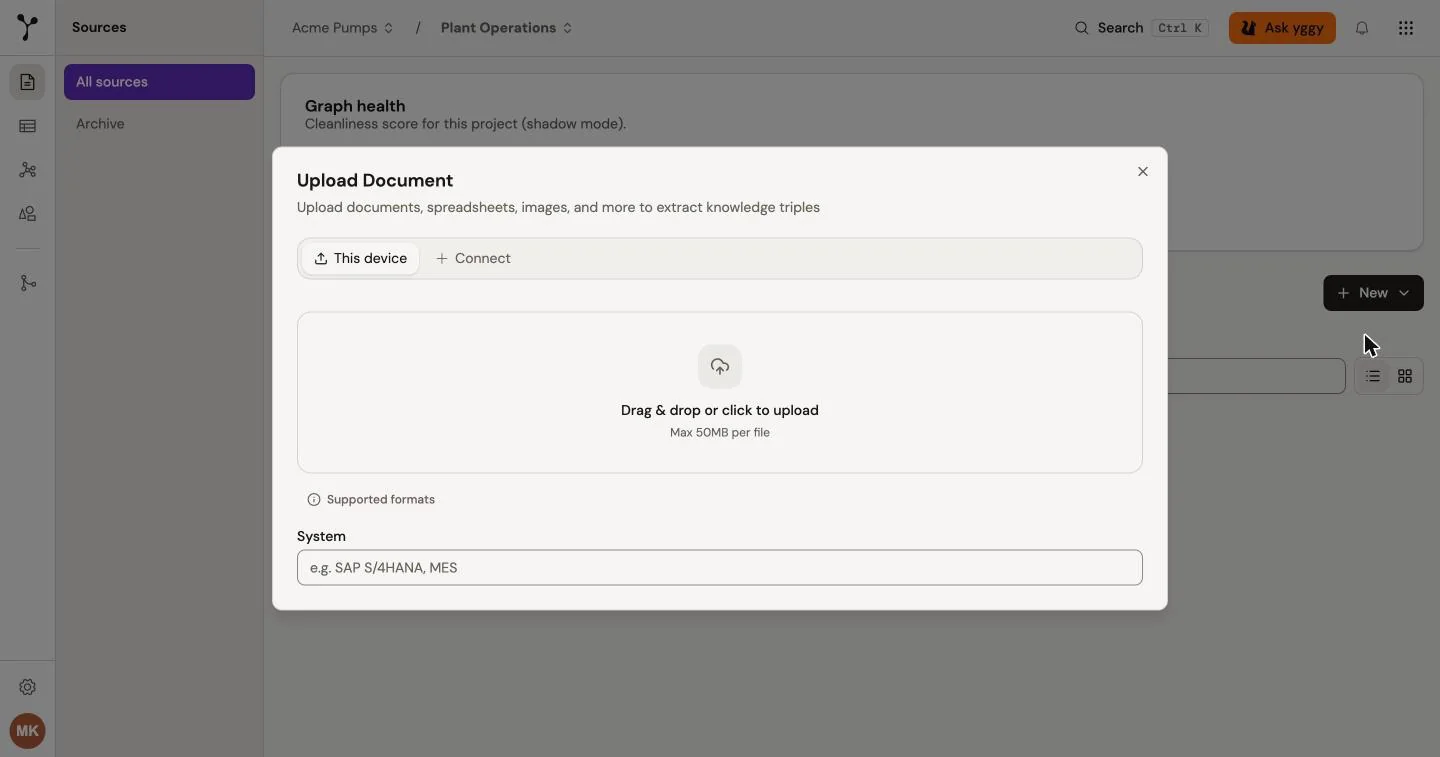
The current upload limit is 50 MB per file. The file picker shows the extensions that the API accepts.
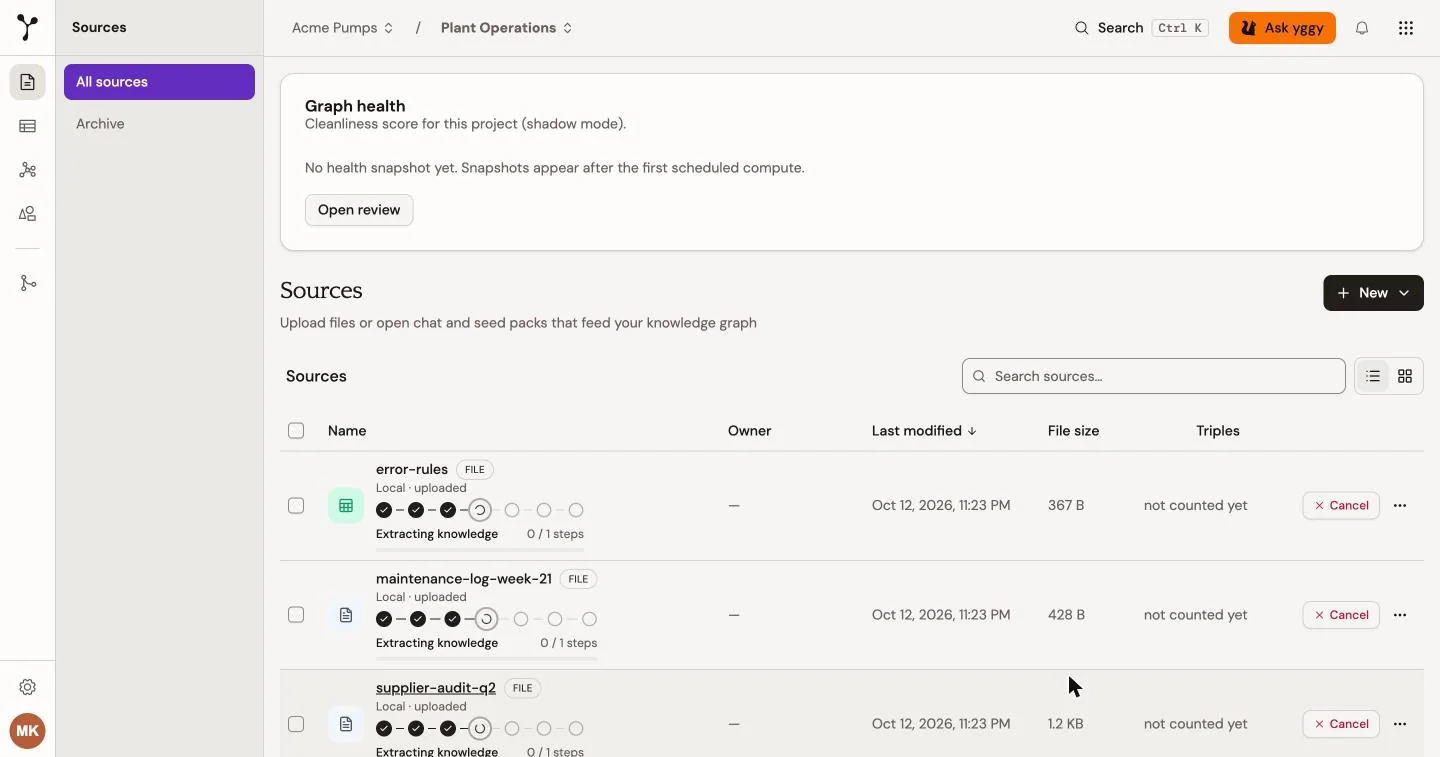
Example: upload machines.csv. When status is Completed, the source shows extracted entities and triples.
5. Inspect the result
Section titled “5. Inspect the result”Open the source. Use the tabs:
- Overview for status, extraction method, entity count, and relation count.
- Mapping when structured extraction produced a field mapping.
- Content for extracted text and tables.
- Triples for facts (subject, predicate, object) and their source quotes.
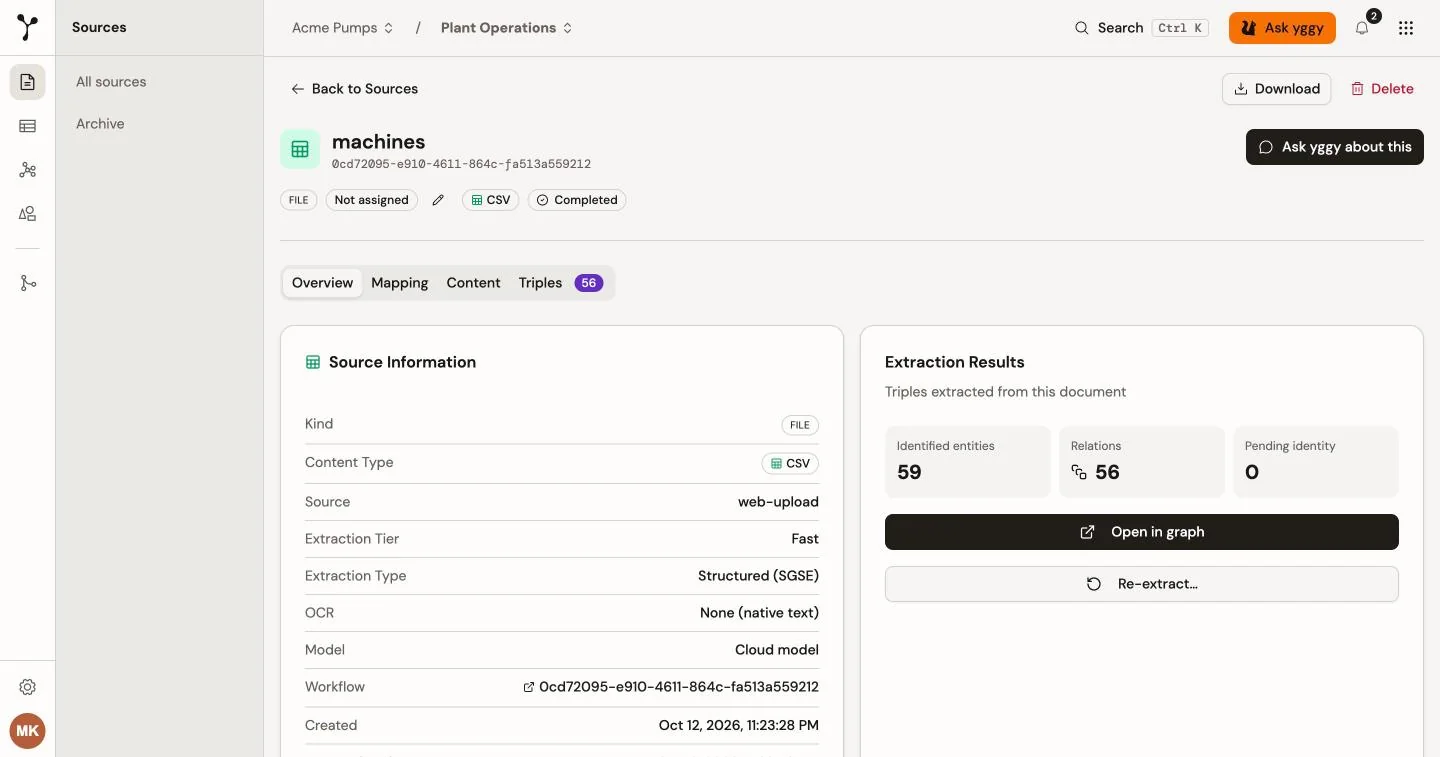
Select Open in graph to see those records in context. Select a node or edge to inspect its detail and source evidence.
6. Review ontology proposals
Section titled “6. Review ontology proposals”If yggy finds a useful concept outside the active vocabulary:
- Open Review → Ontology, or open Ontology → Proposals.
- Read the source / if-approved comparison.
- Choose Add to vocabulary, map the term to one you already have, or choose Decline term.
Facts stay in the graph either way. A proposal is not added to the approved vocabulary silently. See Inspect the ontology workspace for the actions.
7. Ask a question
Section titled “7. Ask a question”Select Ask yggy in the top bar while the project is active. Start with a specific entity, relationship, or document. Expand the tool calls in the response to inspect the graph data that Chat used.