
Upload
Upload local files
Section titled “Upload local files”- Open a project.
- Select Sources.
- Select New, then Upload file.
- Drop files onto the dialog, or select the drop area and choose files.
- Review the selected files and wait for processing to start.
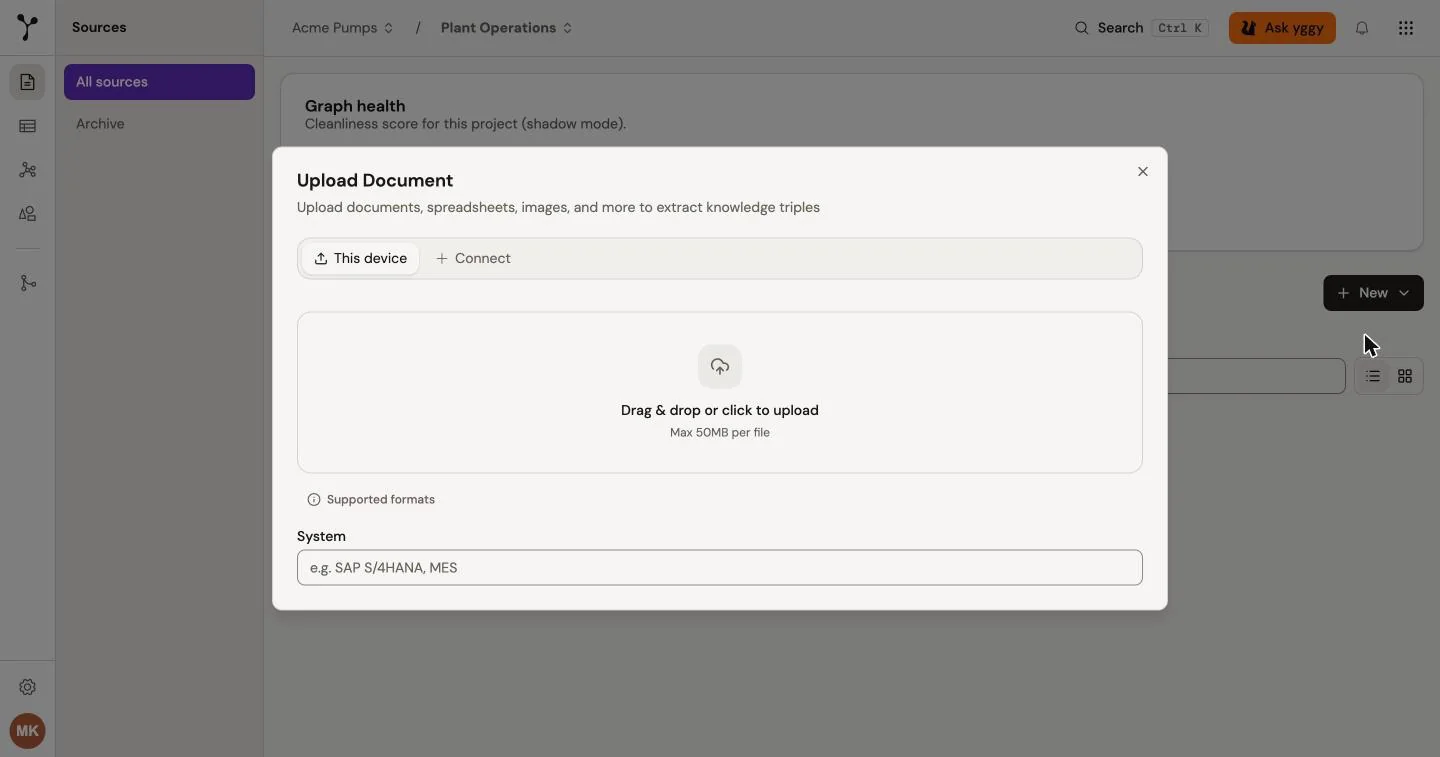
You can select several files. yggy validates each file separately and queues every valid file for extraction.
The upload control accepts files, not folders. See Supported formats for the current size and extension rules.
Import from a drive
Section titled “Import from a drive”The same dialog can browse files from a connected drive. Current examples include Google Drive and OneDrive / SharePoint:
- Open the Connect tab, then connect the drive when prompted or select it.
- Browse or search its folders.
- Select one or more files.
- Import them into the active project.
Drive connections are user-scoped. Other organization members do not inherit your personal drive access.
Track processing
Section titled “Track processing”After upload, a source moves through pending and processing states. You can leave the page and return later. The Sources list and the source detail page show the current state.
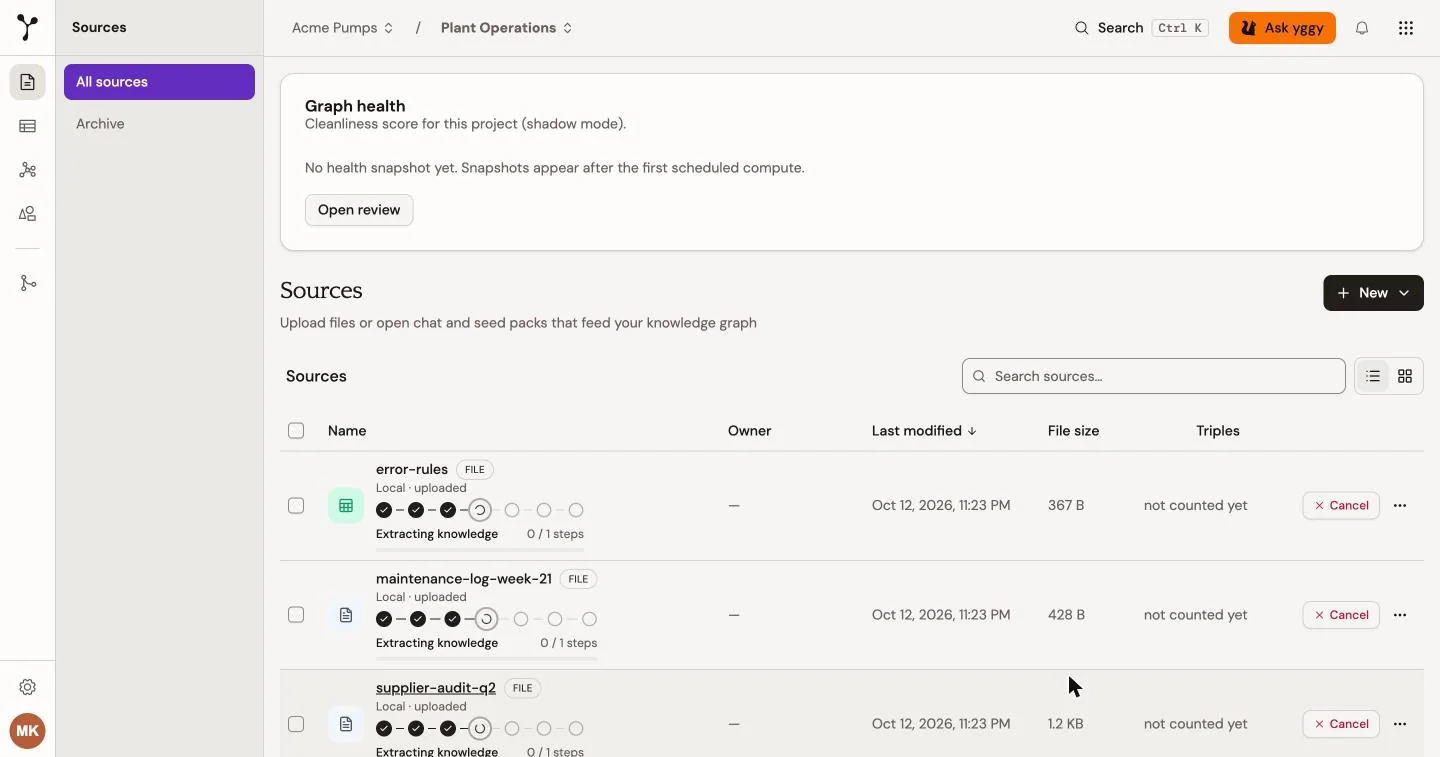
When extraction completes, use the source’s Content, Mapping, and Triples tabs to review the result.